Mac Storage Full But Nothing to Delete? Here's What's Hiding
The Dusty Team
Mac storage guides
format_list_bulleted Quick Navigation (Table of Contents)
You receive a "Your disk is almost full" notification. You open Finder, delete dozens of photos, empty the Trash, and check your storage again—only to find that your available disk space hasn't moved a single gigabyte. Here is why macOS hides consumed disk space and how to uncover what is actually eating your drive.
help_outline 1. The "Nothing to Delete" Paradox Explained
In modern macOS versions using the Apple File System (APFS), deleting a file from Finder does not always free physical disk blocks immediately. If an APFS snapshot, Time Machine local backup, or purgeable virtual container references those blocks, macOS marks the space as "Purgeable" while keeping the data locked on your SSD.
visibility_off 2. The 5 Hidden Storage Culprits
- APFS Local Snapshots (15GB–50GB): Time Machine creates invisible restore points on your internal SSD every hour.
- Xcode DerivedData & DeviceSupport (20GB–40GB): Build artifacts and simulator data in ~/Library/Developer.
- Messaging App Containers (10GB–30GB): Video forwards cached indefinitely by WhatsApp, Slack, and Telegram in
~/Library/Group Containers. - Dormant Developer Dependencies (10GB–40GB): Redundant node_modules and Docker containers.
- Old iOS Backups (10GB–50GB): Unused iPhone/iPad local backups located in
~/Library/Application Support/MobileSync/Backup.
memory 3. What is "Purgeable Space" on Mac?
Purgeable space consists of files that macOS considers safe to delete automatically when disk space runs dangerously low (such as iCloud-synced files or font caches). However, third-party software like Docker, Final Cut Pro, and Xcode will crash with "Out of Disk Space" errors before macOS initiates automatic purging.
terminal 4. How to See What Apple Won't Show You
Use these terminal diagnostic commands to reveal hidden space hogs:
tmutil listlocalsnapshots /
du -sh ~/Library/Application\ Support/MobileSync/Backup 2>/dev/null
sudo du -sh /private/var/log 2>/dev/null
auto_awesome 5. The Fastest Fix: Dusty AI Storage Cleaner
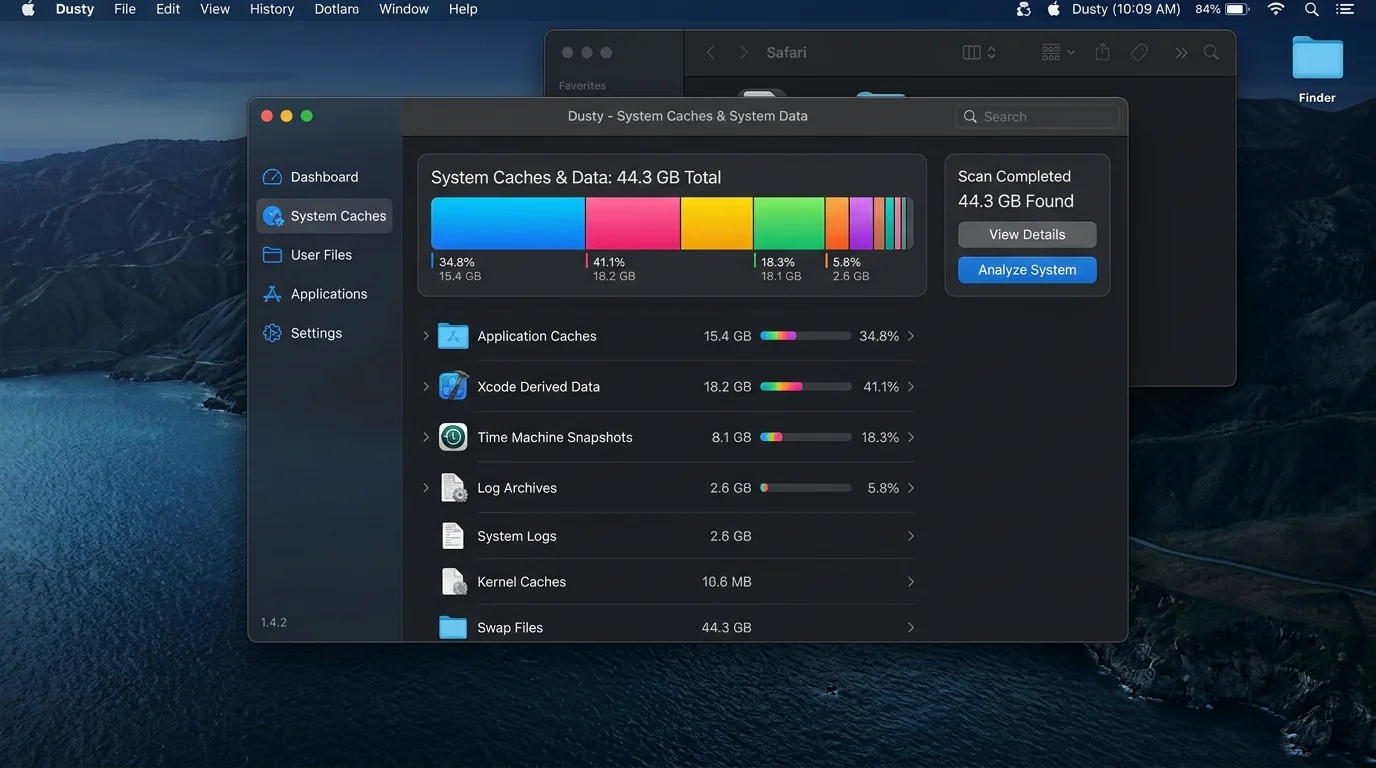
Rather than guessing terminal flags or hunting through nested Library containers, Dusty scans your drive locally in under 30 seconds. Using connected Gemini AI, Dusty categorizes every hidden container into plain English, explains why it exists, and safely moves disposable assets to Trash with 100% reversible protection.
Need More Physical Storage? Top Mac External SSDs
Cleaned internal caches but still need archive space? These are the fastest USB-C & Thunderbolt drives for Apple Silicon:
Up to 1,050 MB/s transfer speed, rugged drop-proof rubber casing, USB-C native.
IP65 water & dust resistance, compact carabiner loop, ideal for photographers & travelers.
Ultra-compact aluminum build, up to 2,100 MB/s, plug-and-play for 4K video editing.
Reclaim Storage Instantly with Dusty
Stop hunting through hidden Library folders. Let Dusty's AI safely analyze and clean your Mac storage in minutes.